
Text input with time codes, converted to audio lenght

Hey all,
I want to make a device to optimize my podcast-editing flow i Ableton.
So for instance, if I have an input in my textedit that has the following format
"[01:05] bla bla bla [01:28]", I want to extract that corresponding length (23 seconds) in an audio track with a corresponding audio file.
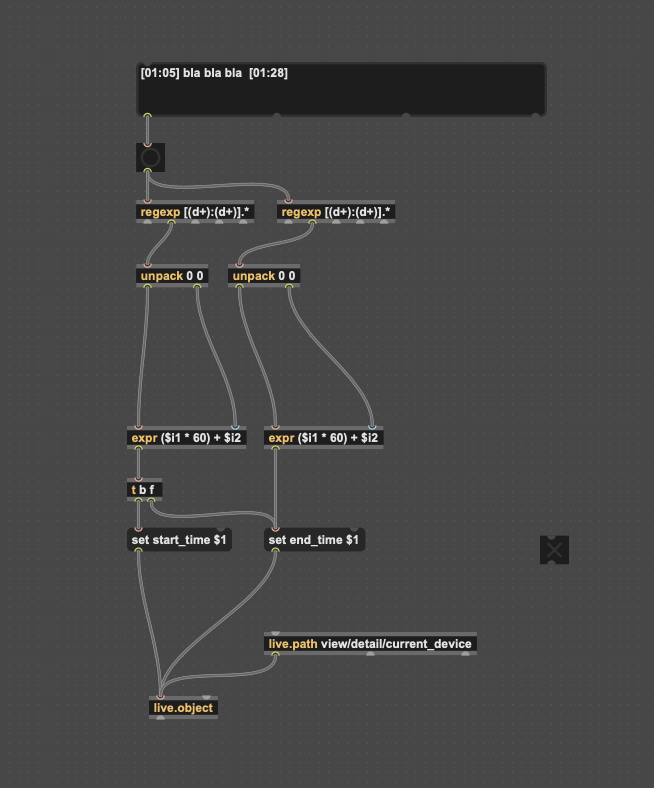
My workflow right now is, that I look at a google-docs transcription with lots of timecodes, so if I can automate that task, it would be really nice. Right now my code looks like this, and it doesn't work. I hope someone can help me.


Please, when sharing patches, select your objects and go to Edit > Copy compressed, then paste the result here. This way we don't have to rebuild your patch from scratch by looking at an image.
A good way to find out what is going wrong is to connect the right inlet of a [message] to every outlet you have a patch cord connected to, so you can know what is coming through this patch cord. Start from bottom objects and go up to the source of the problem. Another handy tool for similar debuging is the Event probe that you can enable in the menu Debug > Event Probe, then you just have to hover a patch cord with the mouse to see what the last transfered message was.
By doing so you'll notice that your [button] sends nothing but bangs, so you basically loose the text from [textedit].
You'll also find that you're only sending bangs to your set start_time $1 and that you're sending your start time value to set end_time $1 instead.
Also I don't think you're using the right syntax for [live.path], and pretty sure you should connect it to [live.object] right inlet instead of its left one.
For each object, right click on them and select "Open *** Help" to see how they are used.
ooh thank you both so much so far. Event Probe feature really showed me how bad i was off! I'm quite new to this, so all help is apreciated.
Okay, so far I've built "Source Audios" patch, and conneted it to the live.object.
Next step is that I want to have the timestamps that I insert in the message box, to output the length of a clip, ex. 23 seconds, every time I insert a new text with timestamps.
How do I proceed?
What are the actual problems you are facing? You're missing a [textedit]? Add it to the patch, see its output, and you should be able to guess how to connect it to the rest of the patch.
Also, nothing will come out of your two [message] objects at the bottom.
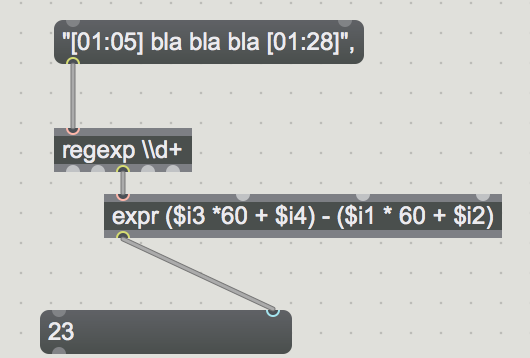
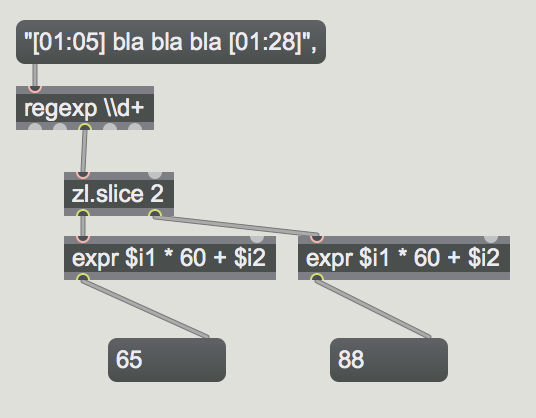
To get the duration, just subtract the right value by the left one, either using [!-], either by doing like Source audio suggested.
Ah okay sure.
So, now I get the duration of the clip, that I want.
What I imagine is,
I can paste the text (with a timecode) that corresponds to the transcription from my podcast manuscript - >
I then get the timecodes and duration, which corresponds to the audiofile ->
Every time I paste or mark the text with the timecodes in Google Docs, the audio file is edited and cut in the selected duration.
I can't figure out
1) how I can get the Max Audio Effect to cut the audio file in Ableton
2) how to somehow connect the patch to what i mark in Google docs, which I suppose i can do manually for now,
If all you want is really to split an audio file based on timestamps, there are probably better tools to do that, like using Audacity or this python tool based on ffmpeg.
You can also do this in Max alone by loading your audio file in a [buffer~], copy the desired section in another [buffer~], export the content of that buffer and repeat for each section. That's what I would go for.
Regarding the clip section of the LOM (your bible when it comes to what you can or cannot do in Max for Live), I don't think you can split an audio clip into multiple parts. You can, however, place the loop markers and crop the clip based on these markers, but that's all. You would need to manually duplicate the entire audio clip and repeat the process for each section, and then export these clips manually.