
How to Update "Move Around" Sub Patcher Values to Minimize Pixilation

Hello all,
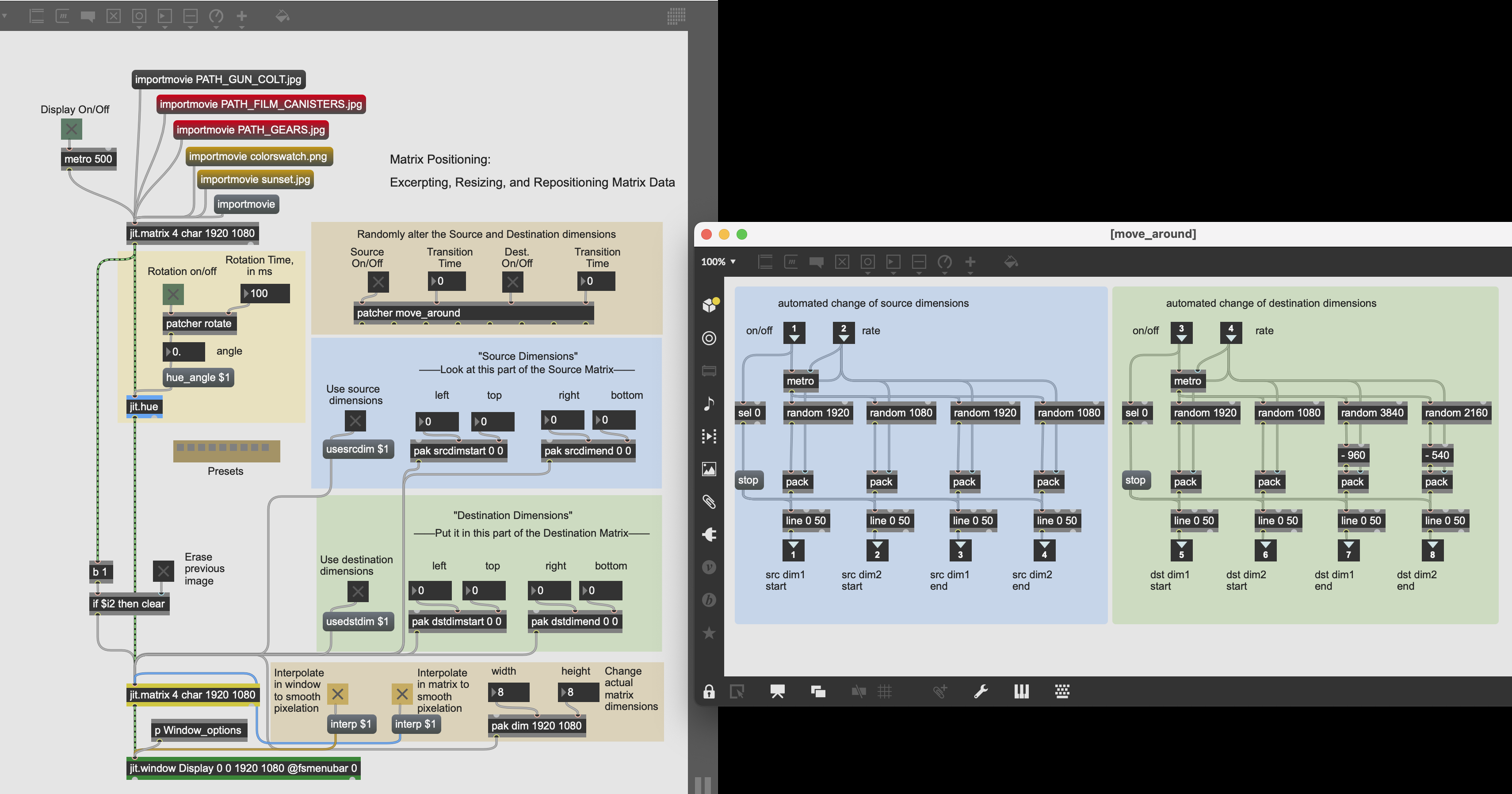
I am working with the Matrix Positioning Patch provided in the MAX documentation. The issue at hand is the "Move_Around" Subpatcher. I would like to set the "Source Dimensions" and "Destination Dimensions" so that pixilation is minimized. Regarding the images fed into the patch, I am using the largest JPEGs possible. I have a basic understanding of how a range might be fed into the random object. Can someone assist with what values I might utilize?

One important thing to become autonomous and proficient in Max is to know how to use its documentation. When you expect an object to have some feature but you are not sure if they exist or how to use them, there is two ways to get an answer (not counting posting on the forum):
The most visual/straightforward : open the object's Help patch, check the various tabs if there are some, and see if you can find something relevant for your issue. It will generally cover the basic uses of an object with some examples that you can take inspiration from or even copy-paste in your patch. Multiple ways to open the object's help path:
with patch unlocked, option+click (mac) or alt+click (windows) on the object
select object and do cmd+shift+H (mac) or ctrl+shift+H (windows)
right click on the object and see "Open <object name> Help" at the top
The most complete: check the objects reference to go through its available methods and attributes. That's basically everything the object can do. Surely you will find a few that will catch your attention. You can access the reference in multiple ways too:
when you open the objects Help file, its reference appears on the right sidebar
you can also open the Reference toolbar in the right of your max patch window (see the "book"), and select the object for which you want to see the reference
select the object and do cmd+shift+R (mac) or ctrl+shift+R (windows), that will open the Documentation on the right page
right click the object and select "Open <object name> Reference", that will also open it in the Documentation window
search for your object in the Documentation window
This should lead you to know how to set the range of [random], as well as answering many other questions you might have in the future!